
Criccode Sign Up
Criccode sign up is the process of creating your personal Criccode account using your mobile number and OTP verification. Once you register, you can:
- Save favourite teams and matches
- Get faster access to live scores and stats
- Sync your preferences across devices
- Log in quickly via mobile or APK
This guide explains each step on the Criccode sign up page and how to fix common issues.
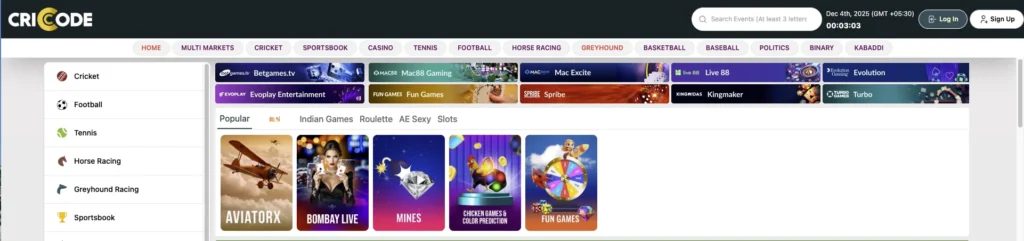
Understanding the Criccode Sign Up Form
Your Criccode sign up form will typically show:
- Country code selector: +91 (can be changed if needed)
- Mobile number field
- Get OTP / Send OTP button
- Verify OTP button
- Register button
- Link: “Already have account?” (go to login page)
Step-by-Step: How to Register on Criccode
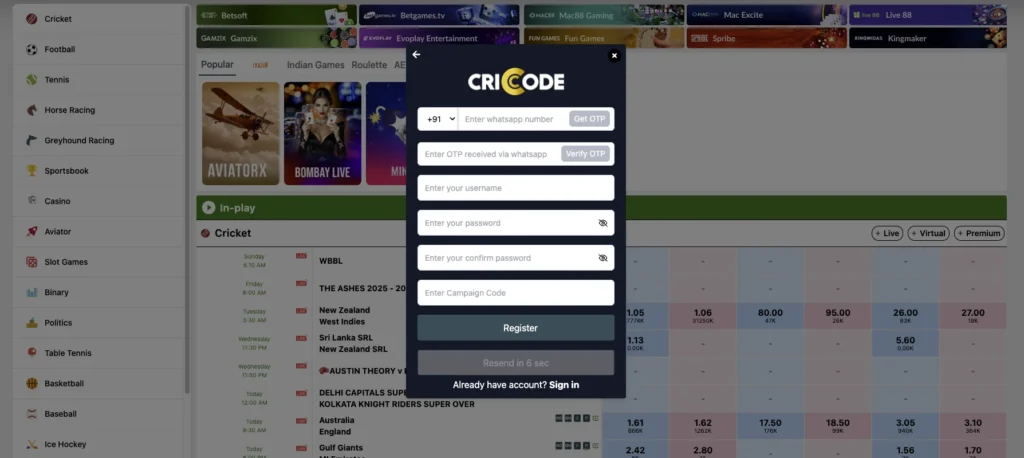
Step 1: Open the Criccode Sign Up Page
- Visit the official website:
criccode.com - Click on Sign Up or Register in the header or login page
- You’ll be redirected to the Criccode Sign Up form
Step 2: Enter Your Mobile Number (+91)
- Check the country code – by default it shows +91 for India
- Tap inside the mobile number field
- Enter your 10-digit mobile number (without 0 or country code again)
- Example: 9876543210
- Double-check there are no spaces or extra digits
Important rules:
- Use a number you currently use and control
- Do not use someone else’s number
- One Criccode account per mobile number
Step 3: Click “Get OTP” / “Send OTP”
- After typing your number, click Get OTP or Send OTP
- Criccode sends a 6-digit OTP to your mobile number via SMS
- Wait for the SMS – usually arrives within 30–60 seconds
If you don’t receive the OTP:
- Check network signal
- Ensure the number is correct
- Wait at least 60 seconds before trying again
Step 4: Enter and Verify OTP
- Check your phone SMS inbox
- Find the message from Criccode with a 6-digit OTP
- Enter the OTP code carefully in the OTP field
- Click on Verify OTP
If OTP is correct:
- You will see a success message (e.g., “OTP Verified Successfully”)
- The Register button becomes active
If OTP is wrong or expired:
- You will see an error like “Invalid OTP” or “OTP expired”
- Click Send OTP again to receive a new code
Step 5: Complete Registration (Click “Register”)
Once OTP is verified:
- Check the form for any additional fields (if shown):
- Name (optional/required)
- Email ID (optional/recommended)
- Referral code (if you have one)
- Agree to Terms & Conditions and Privacy Policy (checkbox)
- Click on the Register button
After clicking Register:
- Your Criccode account is created
- You may be auto-logged in
- Or redirected to the Criccode Login page where you can log in using your mobile and password/OTP
Using “Already Have Account?” Link
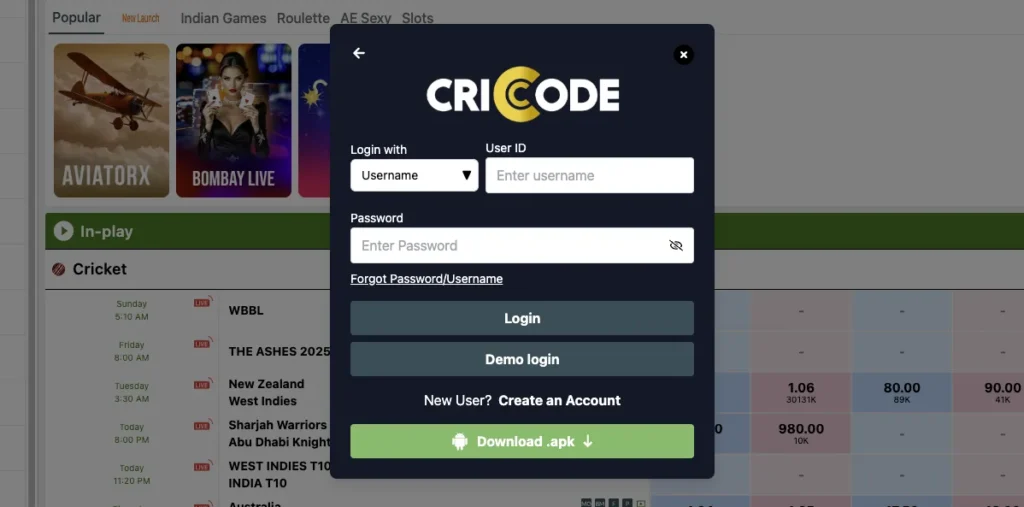
On the Criccode sign up page, you will see the text:
- Already have account?
If you already registered before:
- Click Already have account?
- You’ll be redirected to the Login page
- Use your mobile number / username / User ID and password or OTP to log in
This avoids creating duplicate accounts.
Best Practices for Criccode Registration
- Use your primary mobile number (for OTP and security)
- Keep your phone nearby during sign up
- Do not share OTP with anyone (even claiming to be support)
- If email field is available, add a valid email for recovery
- Read Terms & Conditions and Privacy Policy before accepting
Troubleshooting Criccode Sign Up Issues
1. OTP Not Received
Possible reasons:
- Poor network signal
- SMS delayed by operator
- Number entered incorrectly
- DND (Do Not Disturb) active
Quick fixes:
- Check your signal and move to a better network area
- Confirm your mobile number is correct
- Wait at least 60–90 seconds
- Tap Send OTP again (max 3–5 tries)
- Restart your phone if needed
If OTP still doesn’t arrive:
- Check if your number has blocked promotional messages
- Contact your mobile operator
- Use the support email/WhatsApp if Criccode provides one
2. “Invalid OTP” Error
Causes:
- Typing mistake in OTP
- OTP already expired
- OTP entered after long delay
Solution:
- Type OTP carefully; avoid copying wrong digits
- Request a new OTP by clicking Send OTP
- Use the new OTP within the time limit (often 2–5 minutes)
3. “Too Many Attempts” or “Limit Reached”
Causes:
- Requested OTP too many times in a short period
- Entered wrong OTP repeatedly
Solution:
- Wait 15–30 minutes before trying again
- Close the browser or app and reopen
- Use stable network
- If still blocked, contact Criccode support
4. Error “Mobile Number Already Registered”
Causes:
- You already created an account previously
- Someone used your number earlier
Solution:
- Click Already have account?
- Go to Login page
- Use Forgot Password / Forgot Username (if available)
- Recover your login instead of registering again
If you think someone else used your number:
- Contact Criccode support
- Provide proof that the number is yours
- Request account verification/ownership change
5. Form Not Submitting / Register Button Not Working
Causes:
- Required field empty
- OTP not verified
- Temporary technical issue
Solution:
- Ensure all required fields are filled
- Make sure OTP is verified successfully
- Refresh the page and try again
- Try another browser (Chrome, Firefox, Edge)
- Clear cache and cookies if needed
Criccode Sign Up Security Tips
- Never share OTP with anyone
- Criccode team will never ask for your OTP or full password
- Always sign up on official website or official APK only
- Avoid third-party links or fake registration forms
- Log out when using shared or public devices
Frequently Asked Questions – Criccode Sign Up
What do I need for Criccode sign up?
You only need a valid mobile number that can receive SMS. In some cases, you may also be asked for your name and email ID during or after registration.
Is Criccode sign up free?
Yes, Criccode sign up is completely free. You do not have to pay any fee just to create an account.
Can I register on Criccode with an email instead of mobile?
Currently, the primary method is mobile-based registration with OTP. Email may be used as an additional contact but mobile number is required for OTP verification.
How long does the Criccode registration take?
The entire Criccode sign up process usually takes 2–3 minutes, if you receive the OTP quickly and enter your details correctly.
I entered the wrong mobile number. What should I do?
If you entered a wrong number and haven’t completed registration, simply reload the sign up page and enter the correct number. If the account is already created, contact support to correct it.
Can I have multiple Criccode accounts with one mobile number?
No. Generally, one mobile number is linked to one Criccode account. This helps prevent abuse and increases security.
Do I need to verify my email after signing up?
If Criccode asks for email, it is recommended that you verify it. Verified email helps in password recovery and communication about your account.
I got OTP on WhatsApp, is this normal?
Usually OTP is sent by SMS. If you receive OTP via WhatsApp from an official verified business account, check carefully it is the real Criccode contact. When in doubt, rely on SMS OTP.
Summary: Criccode Sign Up in Simple Steps
- Open the official Criccode sign up page
- Select country code +91 (or your own)
- Enter your 10-digit mobile number
- Click Get OTP / Send OTP
- Enter the 6-digit OTP from SMS
- Click Verify OTP
- Fill in any extra fields (name, email, referral code)
- Tick the box to accept Terms & Conditions and Privacy Policy
- Click Register to complete Criccode sign up
After this, you’re ready to use the Criccode login page with your registered number and start enjoying live cricket updates.